- How to add yourself to IMDb
- How do I add a biography?
- How can I delete or update my biography?
- Biographical data guidelines
- Names
- How can I combine two IMDb name pages?
- Alternate names (AKAs)
- How do I change my name?
- My name was spelled incorrectly. Can you fix it?
- Manage the display of your alternate name(s)
- Manage the display of your birth name
- I know there is only one John Smith registered with SAG. How do I delete the other IMDb pages?
- I know that the individual who worked on film X is not the same individual who worked on film Y. How do I delete the incorrect credit?
- Links to external sites for Names
How can I delete or update my biography?
Can I delete my biography?
It is our policy not to remove biographies in their entirety, unless we first receive an updated or amended version. However, if you are aware of inaccuracies or breaches of policy contained within an existing biography and bring them to our attention, we will investigate and if appropriate, remove or amend the items.
Please note that replacing a biography that fits our guidelines and contains a good deal of background information with one containing almost no interesting information will be considered the same as attempting to delete a biography.
How can I update my biography?
A name page can only list a single biography, however we welcome updates and corrections to keep these current. Please be aware that if a person does not have a specially written bio, we will automatically generate one using any other available information or credits already listed on their pages. More information on the auto-generated biographies can be found here. These will not appear as items to correct, therefore you will need to submit a new biography which will override the auto-generated one.
To update an existing biography (that is not auto-generated), please see the following instructions:
1. Go to that person's page.
2. Click on the "Edit page" button towards the bottom.
3. Next to the "Biography" option click the drop down and select "Correct/Delete".
4. Scroll to the bottom of the page and select "Continue".
5. Next to the biography, click the drop down and select "Correct" and then "Check these updates" at the bottom of the page.
6. Input the new biography into the field, making sure it's in line with our Mini-Biography guidelines.
7. Please be sure to add an author in the "By:" field.
8. Click "Check these updates" and correct any errors you're presented with.
9. Press "Submit".
Tracking your contribution
You can now track the status of your Biographical submission and if it has not been approved, we'll tell you the reason why.
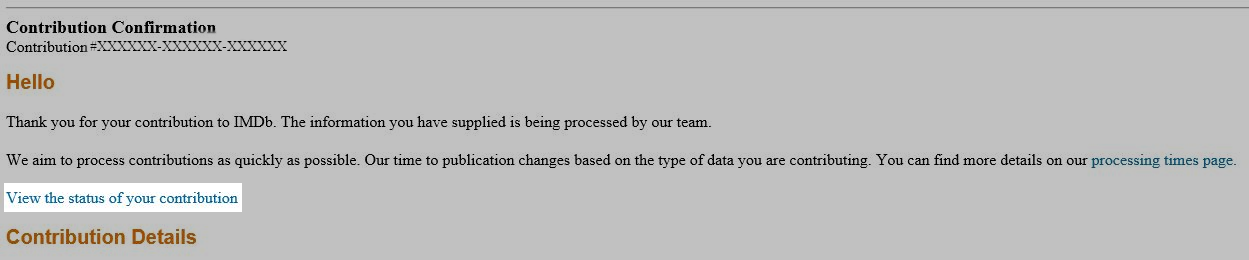
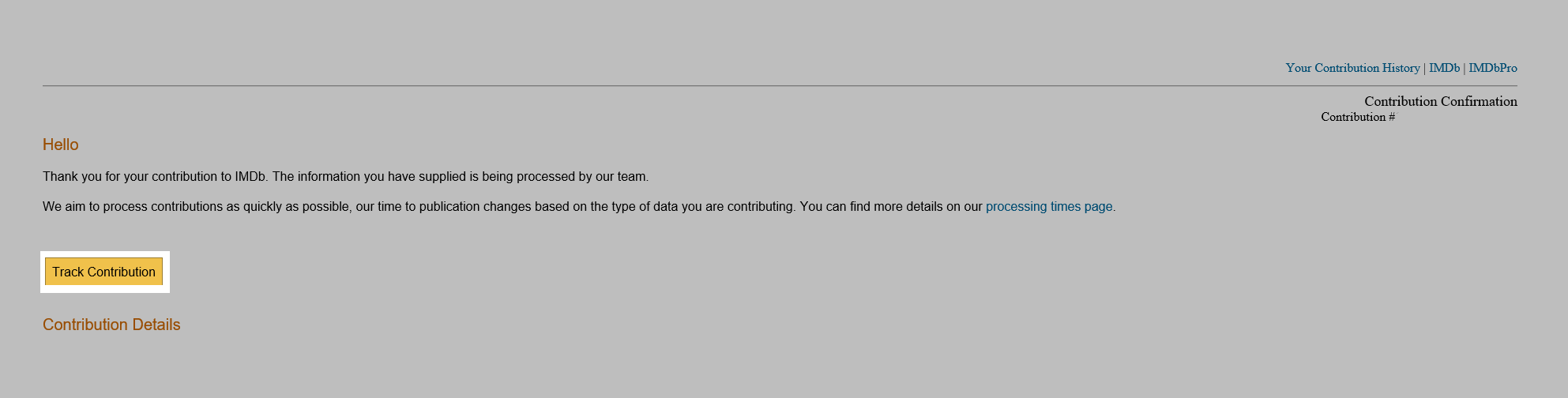
If you are using the mobile apps, mobile website or desktop website you can access this feature via the 'Track your contribution' button, which has been added to the submission email receipt. Additionally, if you are using the desktop website, you can also use the 'Track Contribution' button now found in your contribution history page.
Clicking this button will take you to IMDb Contributor, our new contribution specific site where you will be shown the status of your request.