Contact data
This article explains what Contact Data is and how it can be updated on IMDbPro along with related Frequently Asked Questions.
Contents
- Getting started
- Guidelines
- How to guide - direct contact | representation | point agent (new!) | employment | branch information
- Frequently asked questions
Getting started
The term Contact information refers to the different types of connection between companies and people.
For a Company 
- Direct contact (email, fax, phone)
- Employees
- Branch data (address, contact info)
- (If agency) Represented clients
For a Person 
- Direct contact (email, fax, phone)
- Employer
- (If an agent) Any represented clients
- (If talent) Any representing agents
On the IMDbPro website, most contact information is located on the right hand side of a name or company page:
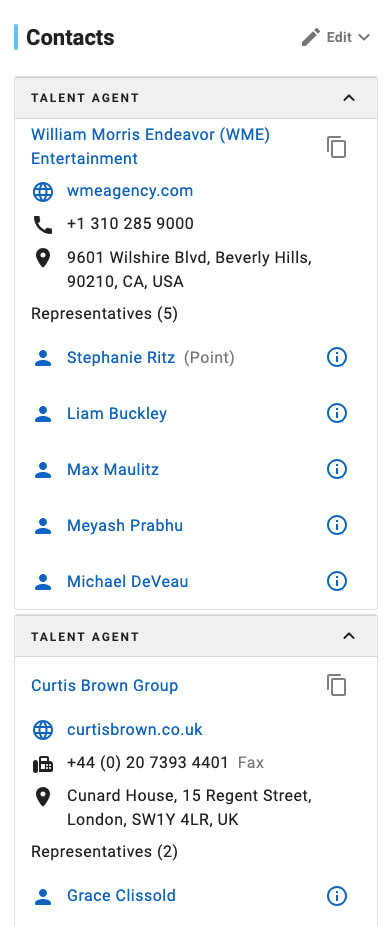
However employees (for companies) and clients (for companies and agents) are listed under their specific sections on their IMDbPro.com pages.
Guidelines
Contact information is only available on IMDbPro.com (and via the IMDbPro App), this means you can only view and update this information with an IMDbPro membership.
Industry Insider? Join IMDbPro to update contact information

It's also important to remember that our aim is to only list the most relevant and up to date information, this means we don't list historic contact information that's no longer applicable.
For deceased individuals, our position is to create a new company for that person's estate (in the form of "Estate of John Doe") and allow it to have representation. For example, you may choose to list the Legal Representative or Publicist of an estate.
How to
direct contact | representation | point agent (new!) | employment | branch informationThere are a few different types of data covered by the term Contact information, this means there are different things that can be updated - along with a couple of different ways of doing it.
These are broken down below.
Direct contact information
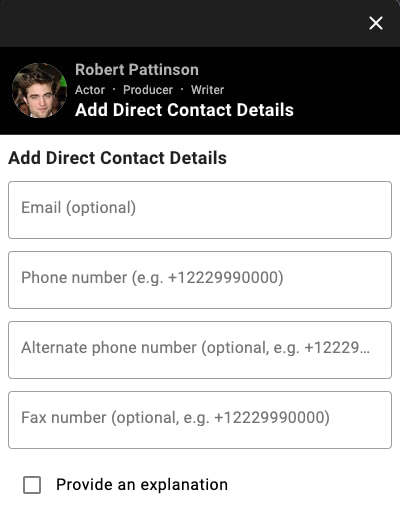
Direct Contact information relates to things such as:
- Phone numbers
- Email addresses
- Fax numbers
If you're hoping to also add an official website - you can do this via the Links to Other Sites section of the contribution form.
|
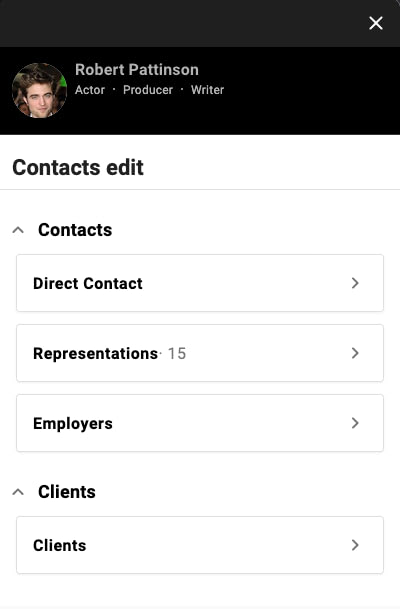
Step 1 For the IMDbPro Website: Use the Contacts panel on the right hand side of your IMDbPro page, or navigate to the Contacts tab. |
 button under the Contact tab on your IMDbPro page.
|
Step 2
|
|
Step 3
|
|
Wait for the update to appear on IMDb |
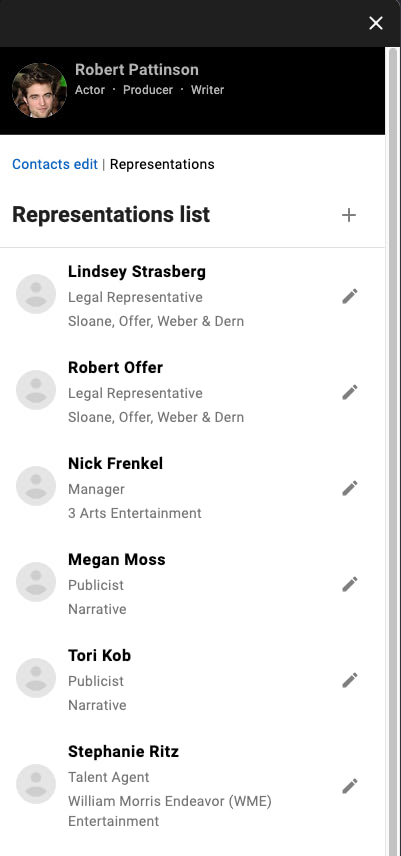
Updating Representatives/Representation
This section is used for both:
- The person being represented
- The person doing the representation
This includes many different roles such as talent management, publicity agent and legal rep.
- Note: IMDb considers Talent Representatives to be those with a direct, ongoing and contractually-defined representation relationship.
If you've claimed a name page, you can update your Representation information via both the IMDbPro website and mobile App.
|
Step 1 For the IMDbPro Website: Use the Contacts panel on the right hand side of your IMDbPro page, or navigate to the Contacts tab. |
|
Step 2 |
|
Step 3
|
|
Wait for the update to appear on IMDb |
Setting point agent (new!)
IMDbPro members can now control which of their representatives are designated as their point contacts on IMDbPro - this will be clearly visible on their name page for other users to see.
The point agent will always be displayed at the top of all reps from the company.
Things to keep in mind:
- Only "talent" reps can be chosen as point contacts - i.e. those starting with "talent..." (e.g. talent agent, talent agent-voice etc.).
- The agent must be linked to a company in order to update your point agent.
- The company can have multiple point agents, but they must be different types of agent. For example, it's not possible to set two "talent agent-voice" representatives as point contacts for the same company, but you can set a "talent agent-voice" and "talent agent-theatrical" point agent for that company.
- Following on from above, adding a new point agent will override any previous selection for the same company and talent type.
Setting point contact when adding a new agent:
When adding a new talent agent to your page, the Point of contact option will be shown at the bottom of the form - tick this and submit your request for review.
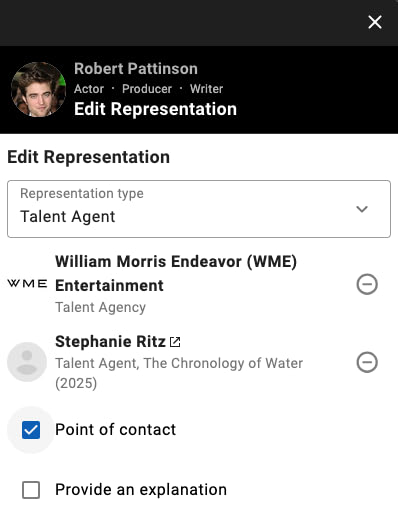
Updating an existing agent:
Using the pencil icon next to any contact information, you can update talent agent representation by selecting the company they're associated with, followed by the pencil icon, then tick Point of contact - you can also untick this option if you'd like to remove them as the point agent.
Updating employment details
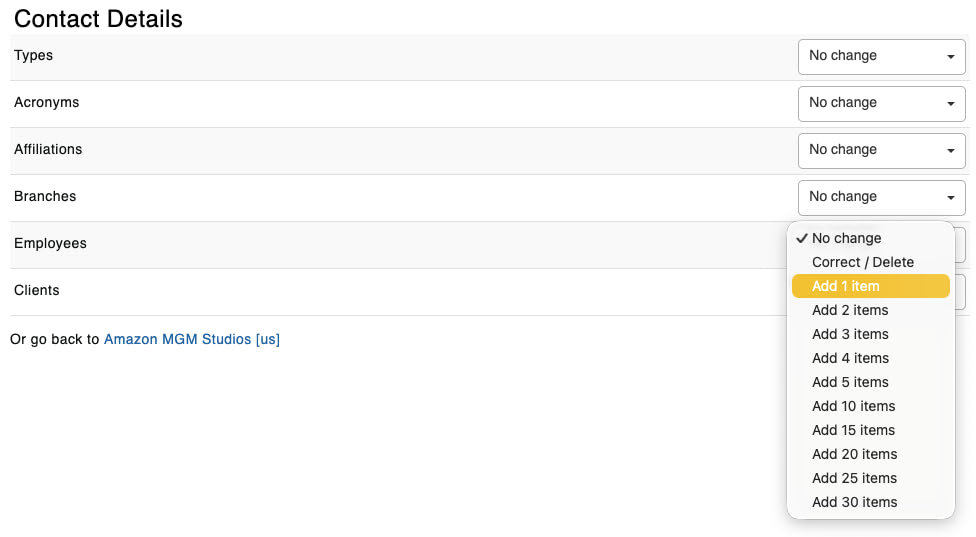
This section is used to update information about who works at a particular company - this includes those working in agencies along with any crew associated with a production or distribution house.
Also please note that this type of change is only available via the IMDbPro website and not using the App.
|
Step 1 |
|
Step 2 |
|
Step 3
|
|
Step 4 |
|
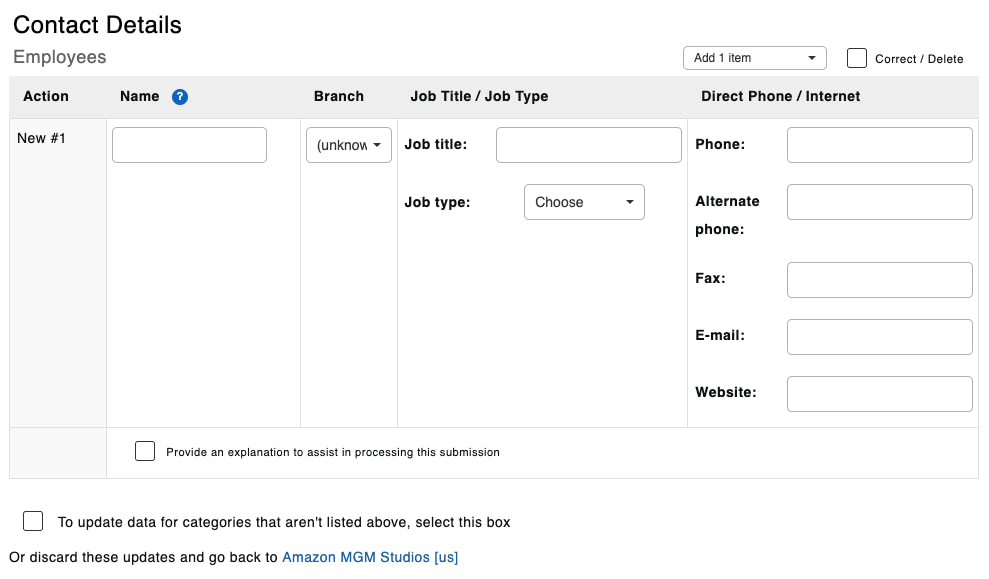
Step 5 If you're looking to add a new employee, populate the desired information in the fields:
|
|
Step 6 |
|
Step 7 |

|
Step 8 |

|
Wait for the update to appear on IMDb |
Updating Company branch information
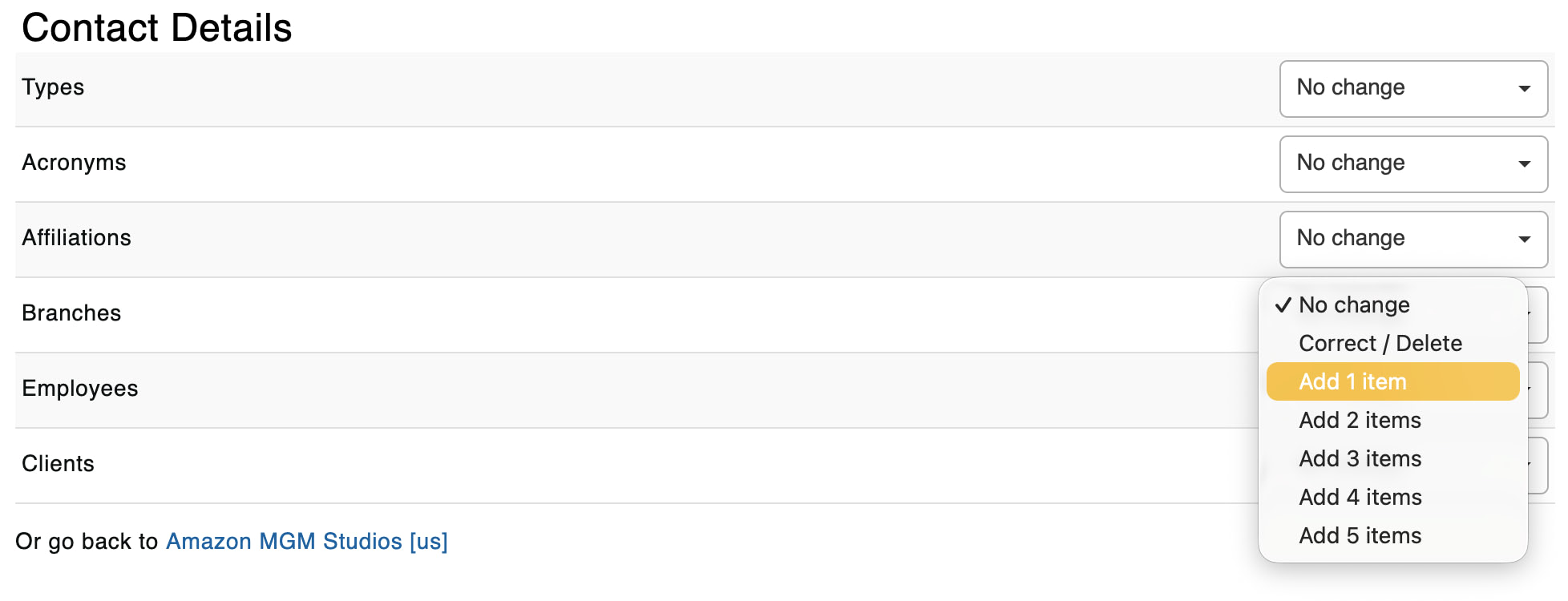
Some companies may have offices in different locations - this section allows you to add or update these different branches to accurately reflect the real world setup of the company.
Also please note that this type of change is only available via the IMDbPro website and not using the App.
If you have multiple branches and need to set a primary branch, please contact us and let us know which location to designate as primary.
|
Step 1 |
|
Step 2 |
|
Step 3
|
|
Step 4 |
|
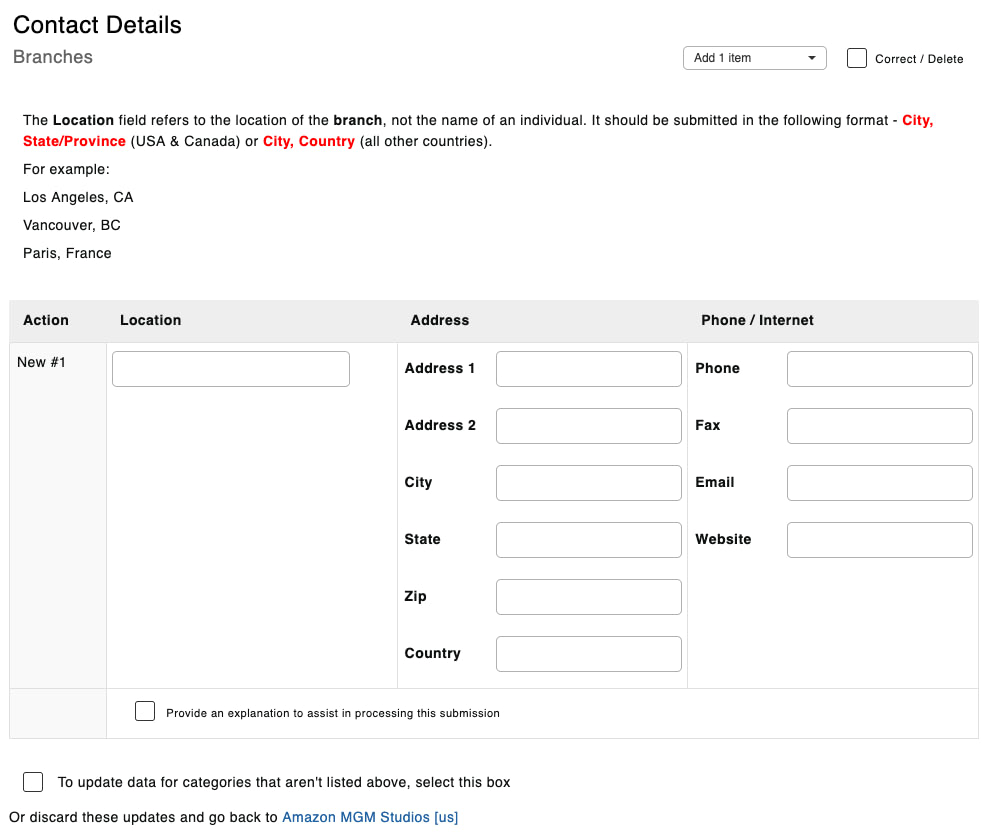
Step 5 If you're looking to add a new branch, populate the desired information in the fields:
|
|
Step 6 |
|
Step 7 |
|
Step 8 |
|
Wait for the update to appear on IMDb |
Frequently asked questions
This section covers the most common questions we receive from customers just like you - hopefully the answer to your question is available below.
If not, you can reach out to a member of our support team via the contact form and a member of staff should be able to help you out further.
My representative is right but their contact details are wrong?
The contact information pulled through for an agent is done so from their IMDbPro page.
If the information is wrong on the agent's page, this will be wrong on the client's page too.
To fix this, submit an update directly to the agent's page to fix their information - once approved, it'll update on any client pages too.
My agent is wrong - can you update it?
We're not able to make changes on your behalf - you can submit the update using the instructions from the How to guide section of this article.
A member of the team will review and approve the update if eligible.
I no longer have IMDbPro, how do I update incorrect contact information?
If you no longer have an IMDbPro membership and there's incorrect information listed on the page, ask somebody with an active membership to submit the update on your behalf.
If you don't know anybody else with an IMDbPro membership, please get in touch using our contact form and a member of our team can remove the incorrect information.
Please be aware that they won't be able to put in new contact information as this is a feature of the IMDbPro membership.
How can I update my information if the company and/or agent isn't listed on IMDbPro?
There are two ways to update your information if this happens - the best way is to try and submit the information via the  or
 buttons at the bottom of the page.
Choose the option from the drop-down based on what you're trying to achieve followed by 
Once you've entered the company (or agent) information and hit  you'll be prompted to create the company or agent like below:
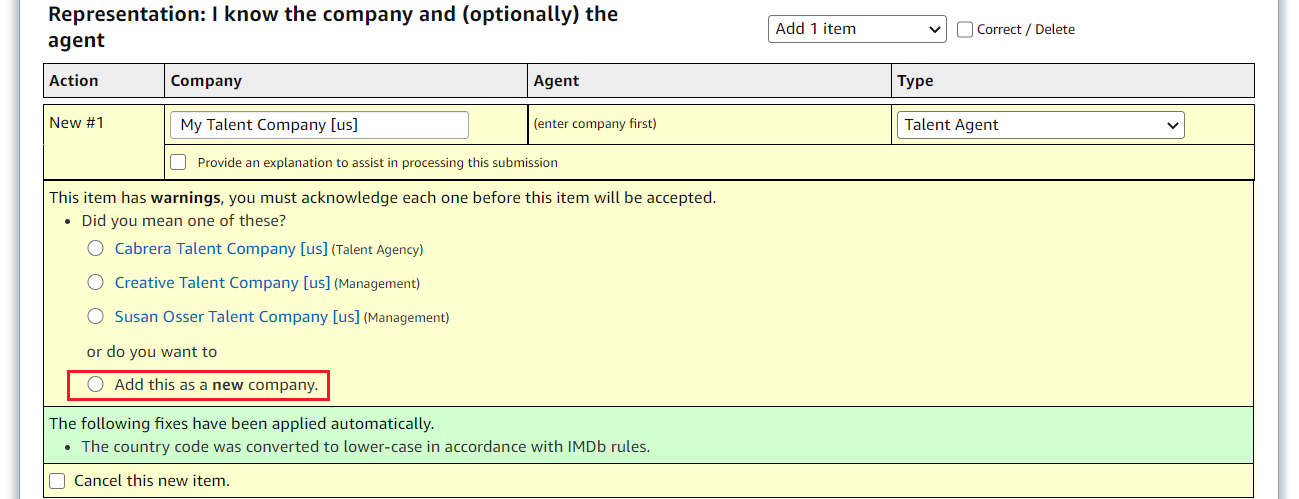
This may take some time for an editor to review and approve the information.
The other option is only available if you're the page owner - in this instance you can update the information via your performer profile.
What if I try to update information and there is nothing to edit?
Scenario 1
The information you're hoping to edit is contained in someone's IMDbPro unverified data. IMDbPro unverified data is marked with an orange asterisk (*) and can only be edited by the owner of the page.
Scenario 2
You may be trying to update a client via the representative's page. Since the primary relationship is between the client and company, you won't see the client on the rep's page when editing. Start at either the company's IMDbPro page or the client's IMDbPro page and follow the instructions above.
How do I designate a main / primary branch?
If you have multiple branches and need to set a primary branch, please contact us and let us know which location to designate as primary.